













From Concept to Reality: How to Build Your First Digital Employee for Your Small Business
A practical, hands‑on tutorial showing small‑business owners how to design, build, and deploy a real AI “digital employee” using common tools like Zapier, Google Workspace, and ChatGPT. Includes workflows, prompts, guardrails, and deployment tips.
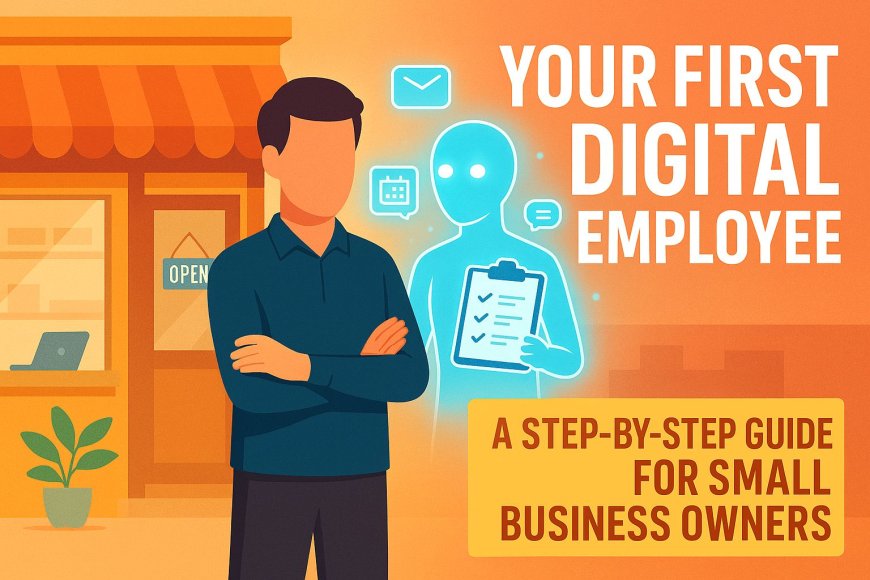
In Beyond Automation: How AI Becomes Your Small Business’s First Digital Employee, we explored how AI is no longer just a tool — it can function like a real member of your team. But for many small‑business owners, the next question is the most important one:
“How do I actually build one?”
This article walks you through a concrete, real‑world example:
creating a Digital Customer Support Coordinator — a role that handles inquiries, drafts responses, updates your CRM, and escalates issues — using tools you likely already have or can adopt easily.
No engineering team. No custom software.
Just practical steps, clear instructions, and a repeatable blueprint.
Step 1 — Define the Digital Employee’s Job Description
Just like hiring a human employee, clarity comes first.
Role: Digital Customer Support Coordinator
Primary Responsibilities
- Receive customer inquiries from email or web forms
- Categorize the inquiry (billing, technical issue, general question, complaint, etc.)
- Draft a professional response
- Log the interaction in your CRM
- Escalate complex issues to a human team member
- Track unresolved tickets
Inputs
- Customer emails
- Contact form submissions
- CRM data
- Knowledge base or FAQ
Outputs
- Drafted email replies
- CRM updates
- Escalation alerts
- Daily summary reports
This becomes the “employment contract” for your digital worker.
Step 2 — Choose a Toolset (No Coding Required)
Here’s a simple, powerful stack:
1. Zapier
Acts as the workflow engine — the “nervous system.”
2. Google Workspace or Microsoft 365
Email, documents, shared drives, and calendars.
3. ChatGPT API or Microsoft Copilot Studio
The brain — handles classification, drafting, and reasoning.
4. CRM (HubSpot Free, Zoho, or Notion)
Stores customer interactions.
This combination is inexpensive, widely supported, and extremely flexible.
Step 3 — Build the Workflow Skeleton in Zapier
We’ll create a Zap (automation) that triggers whenever a new customer message arrives.
Trigger
- New Email in Gmail
or - New Form Submission (Typeform, Gravity Forms, Shopify, etc.)
Action 1: Send the message to ChatGPT / Copilot Studio for classification
Prompt example:
You are a Digital Customer Support Coordinator.
Classify the following message into one of these categories:
- Billing
- Technical Issue
- General Question
- Complaint
- Urgent Escalation
Return your answer as:
Category:
Summary:
Action 2: Draft a reply
Second prompt:
Draft a professional, friendly email response to the customer based on the category and summary below.
Keep the tone aligned with a small, service-oriented business.
If the issue requires escalation, acknowledge the concern and inform them a specialist will follow up.
Action 3: Update the CRM
Zapier can push:
- Customer name
- Email
- Category
- Summary
- Drafted response
- Timestamp
into HubSpot, Zoho, or Notion.
Action 4: Notify a human when needed
If the AI classified the message as:
- Complaint
- Urgent Escalation
- Technical Issue requiring human review
Zapier sends:
- Slack message
- Email alert
- SMS
Step 4 — Create the Digital Employee’s Knowledge Base
Your digital employee needs context — just like a human hire.
Build a simple folder or Notion page containing:
- Your FAQ
- Pricing
- Policies
- Refund rules
- Product descriptions
- Tone guidelines
- Example emails
Connect it to the AI
If using:
- ChatGPT API → Provide the knowledge base as part of the system prompt or via embeddings.
- Microsoft Copilot Studio → Upload documents directly into the bot’s knowledge library.
This dramatically improves accuracy and consistency.
Step 5 — Add Guardrails and Escalation Logic
A digital employee should know its limits.
Rules to enforce:
- Never issue refunds automatically
- Never promise delivery dates without checking inventory
- Never provide legal or financial advice
- Escalate if the customer is angry, confused, or mentions cancellation
- Escalate if the message contains sensitive information
These rules can be embedded in the system prompt:
If the message involves refunds, cancellations, legal issues, or customer frustration, do not attempt to resolve it.
Instead, draft a polite acknowledgment and escalate.
Step 6 — Test the Digital Employee Like a Real Hire
Before going live, run simulations.
Test scenarios:
- Angry customer
- Billing confusion
- Technical issue
- Simple FAQ
- Spam
- Multi‑part questions
Evaluate:
- Accuracy
- Tone
- Escalation behavior
- CRM logging
- Response time
Refine prompts and workflows until performance is consistent.
Step 7 — Deploy and Monitor
Once live:
Daily
- Review escalations
- Approve or edit drafted replies
- Check CRM logs
Weekly
- Update the knowledge base
- Add new examples
- Review misclassifications
Monthly
- Evaluate performance metrics:
- Average response time
- Number of inquiries handled
- Escalation rate
- Customer satisfaction
Your digital employee improves over time — just like a human.
Step 8 — Expand the Role (Optional)
Once the foundation is solid, you can extend capabilities:
Add-ons
- Automated follow‑ups
- Appointment scheduling
- Lead qualification
- Customer satisfaction surveys
- Multi‑channel support (Instagram, Facebook, WhatsApp)
- Voice call summaries
Each new responsibility is just another workflow.
Conclusion: Your First Digital Employee Is Within Reach
The leap from “AI as a tool” to “AI as a digital employee” is not theoretical — it’s practical, accessible, and transformative for small businesses.
With a clear job description, a simple automation stack, and a structured workflow, you can create a digital worker that:
- Never sleeps
- Never forgets
- Never loses a ticket
- Always responds instantly
- Scales with your business
This is the beginning of a new operational model — one where small businesses gain leverage previously reserved for large enterprises.
Written/published by Kevin Marshall with the help of AI models (AI Quantum Intelligence).
What's Your Reaction?
 Like
0
Like
0
 Dislike
0
Dislike
0
 Love
0
Love
0
 Funny
0
Funny
0
 Angry
0
Angry
0
 Sad
0
Sad
0
 Wow
1
Wow
1